Classification Only with AI Tools option
The Classification feature provides a suite of tools for data preprocessing, dimension reduction, and classification. It supports both unsupervised and supervised classification methods, allowing users to analyze and classify data efficiently.
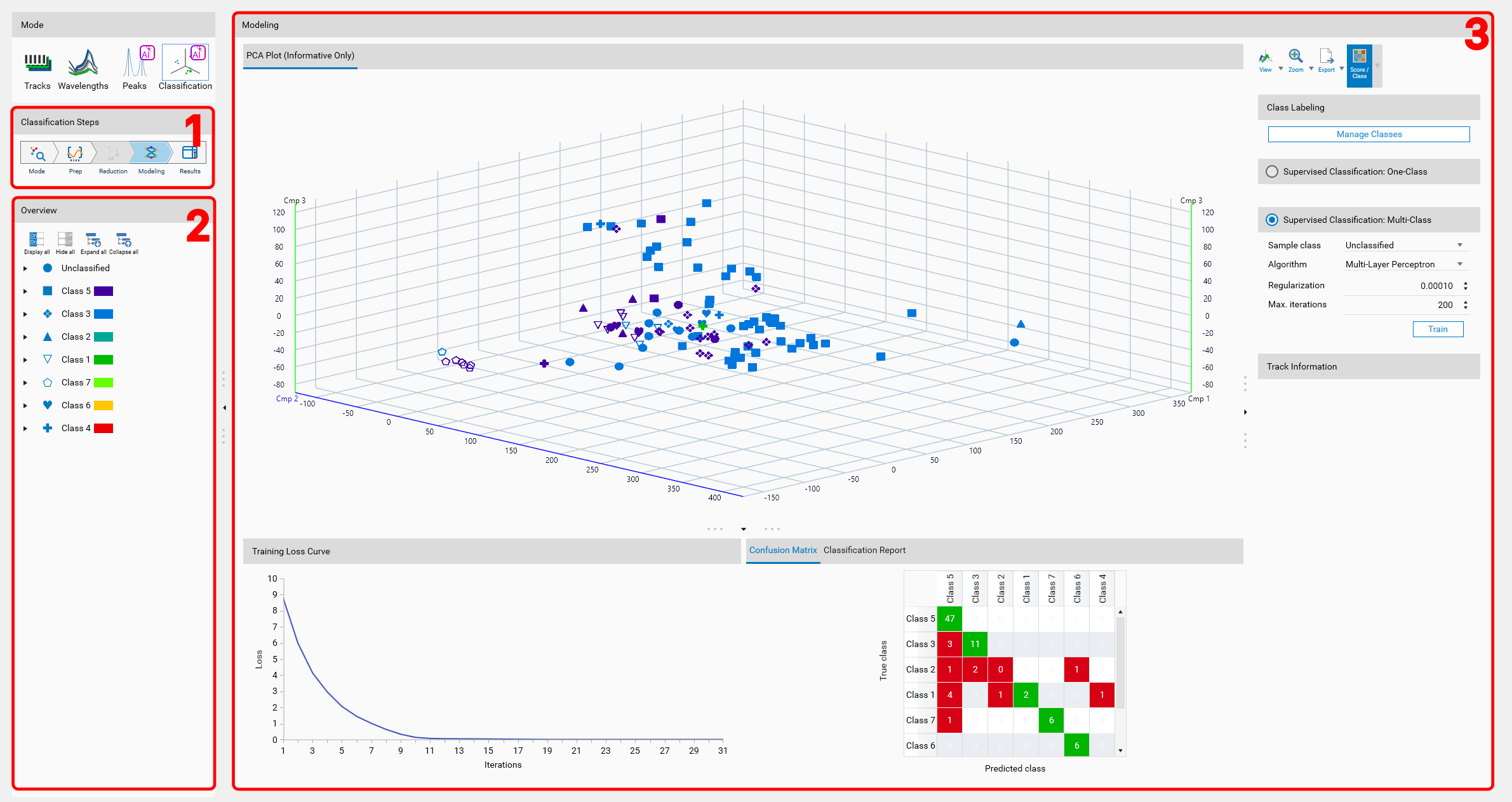
- orphan:
General layout
Classification steps
 Classification mode: Choose between supervised and unsupervised classification.
 Preprocessing: Configure preprocessing settings, including wavelength/illumination selection, data mode, and preprocessing tools.
 Dimension Reduction: Configure a dimension reduction algorithm to reduce the dataset’s dimensionality. Only available for unsupervised classification.
 Modeling: Configure classification settings and run the classification algorithms.
 Results: Visualize and analyze the classification results.
Overview
The overview lists the different classes defined, and for each class, the list of the tracks that belong to it.
 Display all tracks
 Hide all tracks
 Toggle between the display of the classes and the simple list of tracks.
 Expand all classes to show their tracks.
 Collapse all classes to hide their tracks.
 Edit the classes definition, see Class labeling for more information.
For each track, it is possible to display or hide it ( and
and  ). And the corresponding analysis can be opened by clicking on the button
  (only possible if the analysis is available on the system).
For each class, the marker used to represent the defined class in the 3D View is displayed. This marker is used to visually distinguish different classes in the 3D view.
Warning
Only 24 markers are available for the classes. If more than 24 classes are defined, the markers will be reused for the additional classes.
For multi-class classification, depending on the view mode, each class will also display the color used in the 3D View to represent the identified class.
Current step view
The view of the current step is displayed here. Depending on the selected step in Classification steps, different options and settings will be available for configuration.